第二节:iOS 安装包-上传

iOS 安装包2-上传

image-20210123122550446

image-20210123122846919

一、ApplicationLoader -> Transporter

1、ApplicationLoader(新版本的xcode11后不再提供)

以前:使用Application loader上传安装包。

现在:升级xcode11后,你会发现找不到Application loader这个工具了。(附:实际上Application loader只是对altool的封装。)
去查看xcdoe11的**更新说明**,有这样一段话

Xcode supports uploading apps from the Organizer window or from the command line with xcodebuild or xcrun altool. Application Loader is no longer included with Xcode. (29008875)

2、Transporter

ApplicationLoader不能使用了,那我们使用什么。苹果在2019年10月份上线了Transporter

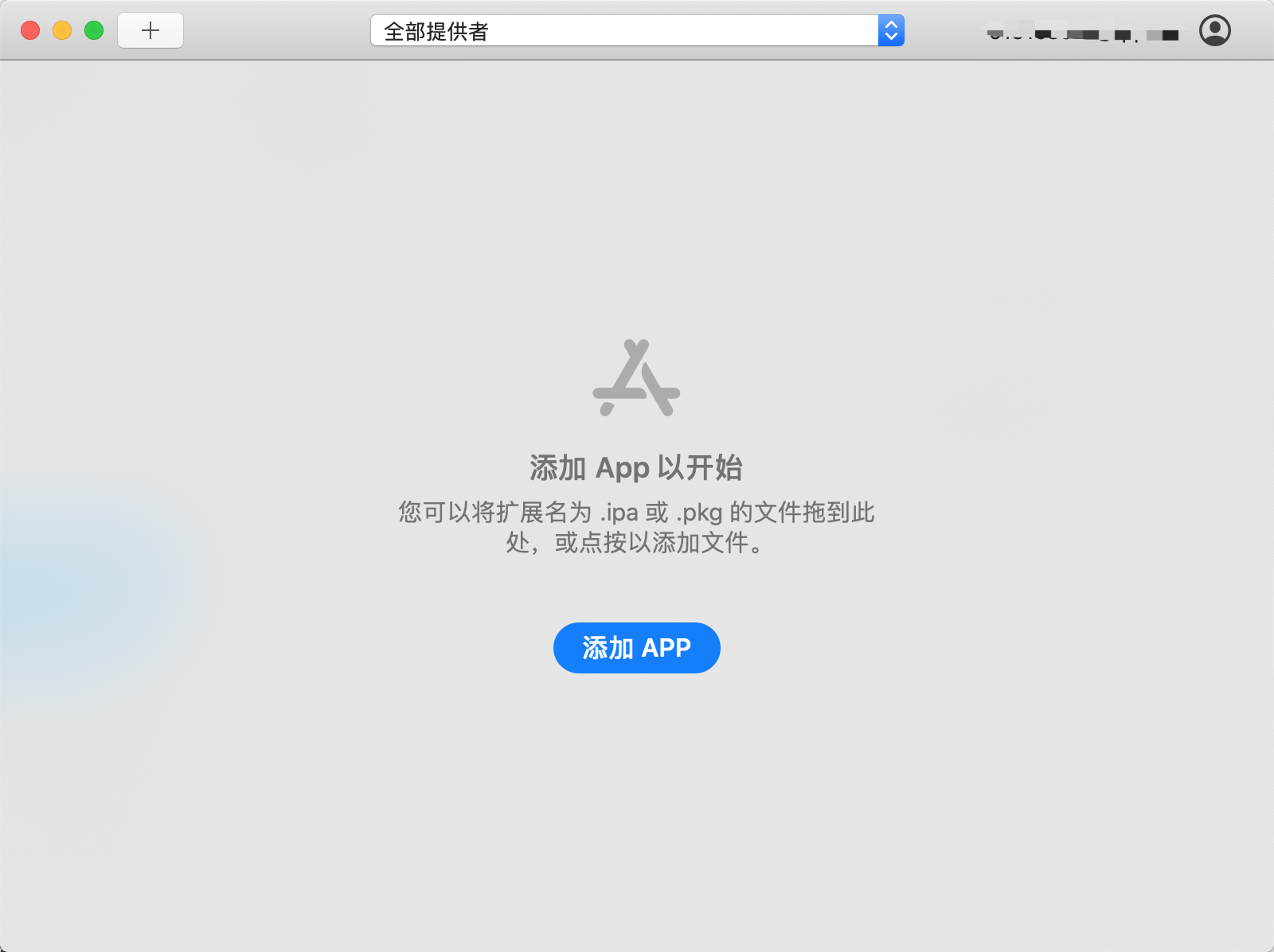
在 App Store Connect 中创建 App 记录后,您便可以通过 Xcode、macOS 版 Transporter 或 altool 上传构建版本。其界面如下:

image-20200921095227639

如果您使用 App Store Connect API,则建议您通过命令行工具 Transporter 和 JSON 网络令牌(JWT)验证来上传二进制文件。用于 API 的 JWT 也可以用于上传二进制文件。

二、xcrun altool

Xcode11前:旧版本的altool只支持ipa、pkg的上传。

xcode11后,新版本的altool在旧版本的基础上,额外支持了各种文件压缩包的上传,应该就是mac、ipad、iphone应用和其他相关打包产物的集合包。

altool 位于:/Applications/Xcode.app/Contents/Developer/usr/bin/altool

altool位置

1、查看xcrun altool的用法

终端执行xcrun altool命令,可见其命令用法如下:

1
2
3
4
5
6
7
8
9
10
11
12
13
14
15
16
17
18
19
20
21
22
23
24
25
26
27
28
29
30
31
32
33
34
35
36
37
38
39
40
41
42
43
44
45
46
47
48
49
50
51
52
53
54
55
56
57
58
59
60
61
62
63
64
65
66
67
MacBook-Pro:~ $ xcrun altool
Copyright (c) 2009-2019, Apple Inc. Version 4.00.1181

Usage: altool --validate-app -f <file> -t <platform> -u <username> {[-p <password>] | --apiKey <api_key> --apiIssuer <issuer_id>}
altool --upload-app -f <file> -t <platform> -u <username> {[-p <password>] | --apiKey <api_key> --apiIssuer <issuer_id>}
altool --notarize-app -f <file> --primary-bundle-id <bundle_id> -u <username> {[-p <password>] | --apiKey <api_key> --apiIssuer <issuer_id>} [--asc-provider <provider_shortname>]
altool --notarization-info <uuid> -u <username> {[-p <password>] | --apiKey <api_key> --apiIssuer <issuer_id>}
altool --notarization-history <page> -u <username> {[-p <password>] | --apiKey <api_key> --apiIssuer <issuer_id>} [--asc-provider <provider_shortname>]
altool --list-apps -u <username> {[-p <password>] | --apiKey <api_key> --apiIssuer <issuer_id>}
altool --store-password-in-keychain-item <name_for_keychain_item> -u <username> -p <password>

Authentication: Most commands require authorization.
There are two methods available: user name with password, and apiKey with apiIssuer.

-u, --username <username> Username. Required to connect for validation, upload, and notarization.
-p, --password <password> Password. Required if username specified and apiKey/apiIssuer are not.
If this argument is not supplied on the command line, it will be read from stdin.
Alternatively to entering <password> in plaintext, it may also be specified using a '@keychain:'
or '@env:' prefix followed by a keychain password item name or environment variable name.
Example: '-p @keychain:<name>' uses the password stored in the keychain password item named <name>.
You can create and update keychain items with the
--store-password-in-keychain-item command.
Example: '-p @env:<variable>' uses the value in the environment variable named <variable>

--apiKey <api_key> apiKey. Required for JWT authentication while using validation, upload, and notarization.
This option will search the following directories in sequence for a private key file
with the name of 'AuthKey_<api_key>.p8': './private_keys', '~/private_keys', '~/.private_keys',
and '~/.appstoreconnect/private_keys'.
--apiIssuer <issuer_id> Issuer ID. Required if --apiKey is specified.
-f, --file <file> <file> specifies the path to the file to process.
-t, --type {osx | ios | appletvos} Specify the platform of the file.

--primary-bundle-id <bundle_id> Used with --notarize-app to uniquely identify a package.

--asc-provider <provider_shortname> Required with --notarize-app and --notarization-history when a user account is associated with multiple
providers.

-v, --validate-app Validates an app archive for the App Store. Authentication and -f are required.
--upload-app Uploads the given app archive to the App Store. Authentication and -f are required.
--list-apps Display all apps associated with your account(s).

--notarize-app Uploads the given app package, dmg or zip file for notarization. Authentication, -f,
and --primary-bundle-id are required. --asc-provider is required for an account associated with multiple providers.
If successful, the UUID associated with the upload is returned.

--notarization-info <uuid> Returns the status and log file URL of a package previously uploaded for notarization with the specified <uuid>.
Authentication is required. The log file can be retrieved with 'curl <log_file_url>'.

--notarization-history <page> Returns a list of all uploads submitted for notarization. <page> specifies a range of entries where 0
returns the most recent number of entries. A new page value will be returned which can be used as the
<page> value to the next use of --notarization-history and so forth until no more items are returned.
Authentication is required. --asc-provider is required for an account associated with multiple providers.

--store-password-in-keychain-item <name_for_keychain_item> -u <username> -p <password>
Stores the password <password> in the keychain item named <name_for_keychain_item> associated with the account <username>.
If an item with that name and account already exists in the keychain, its password will be updated. Otherwise a new item
is created with that name. You can use this keychain item with the -p option to mask your password with other commands.
Example: altool --store-password-in-keychain-item MY_SECRET -u jappleseed@apple.com -p "MyP@ssw0rd!@78"
altool --notarize-app -u jappleseed@apple.com -p @keychain:MY_SECRET [...]

--output-format {xml | normal} Specifies how the output is formatted. 'xml' displays the output in a structured format; 'normal' displays in
an unstructured format (default).

--verbose Enable logging output.

-h, --help Display this output.

2、查看ipa包验证和上传使用的xcrun altool命令

我们主要看两个命令:

1
2
Usage: altool --validate-app -f <file> -t <platform> -u <username> {[-p <password>] | --apiKey <api_key> --apiIssuer <issuer_id>}
altool --upload-app -f <file> -t <platform> -u <username> {[-p <password>] | --apiKey <api_key> --apiIssuer <issuer_id>}

三、xcrun altool验证上传(方式1:username+password方式)

将我们查看到的两个命令:

1
2
Usage: altool --validate-app -f <file> -t <platform> -u <username> {[-p <password>] | --apiKey <api_key> --apiIssuer <issuer_id>}
altool --upload-app -f <file> -t <platform> -u <username> {[-p <password>] | --apiKey <api_key> --apiIssuer <issuer_id>}

使用 username+password 方式 改为最终的形如:

1
2
xcrun altool --validate-app -f ../output/Debug-iphoneos/Runner/Runner.ipa -t ios --verbose -u 账号 -p 密码
xcrun altool --validate-app -f ../output/Debug-iphoneos/Runner/Runner.ipa -t ios --verbose -u 账号 -p 专用密码

1、问题1Please sign in with an app-specific password

1.1、错误详情及分析

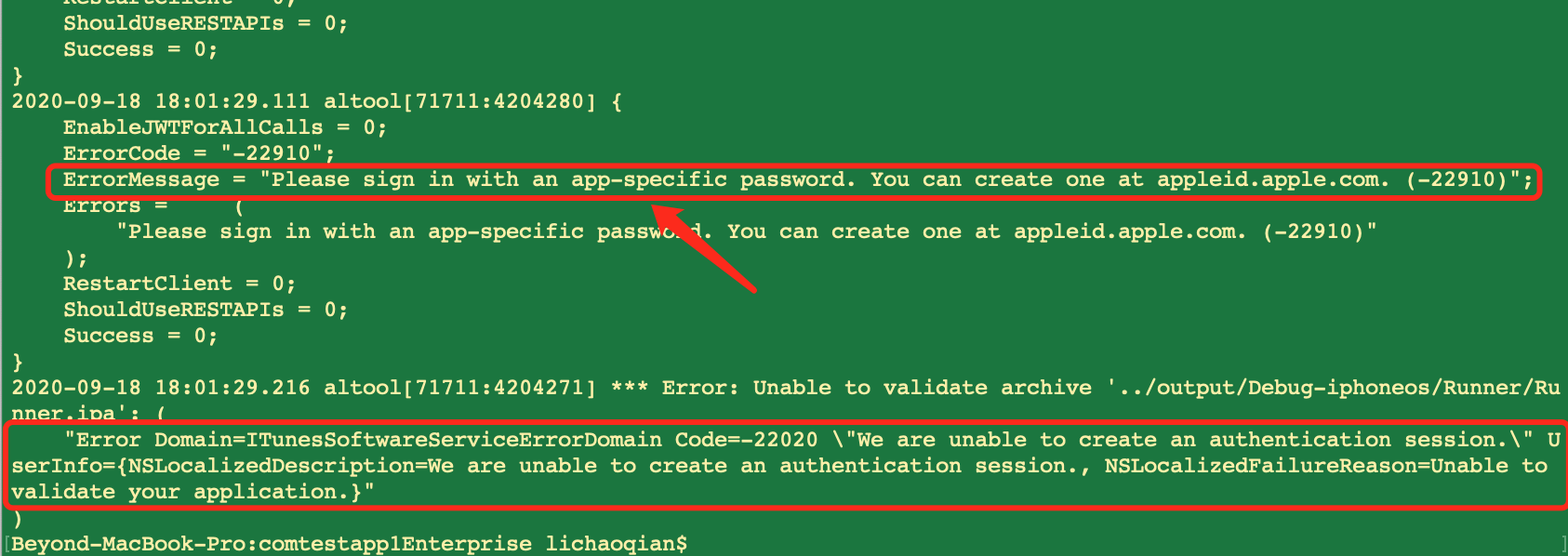
使用非专用密码时候的错误截图如下: image-20200918190110153

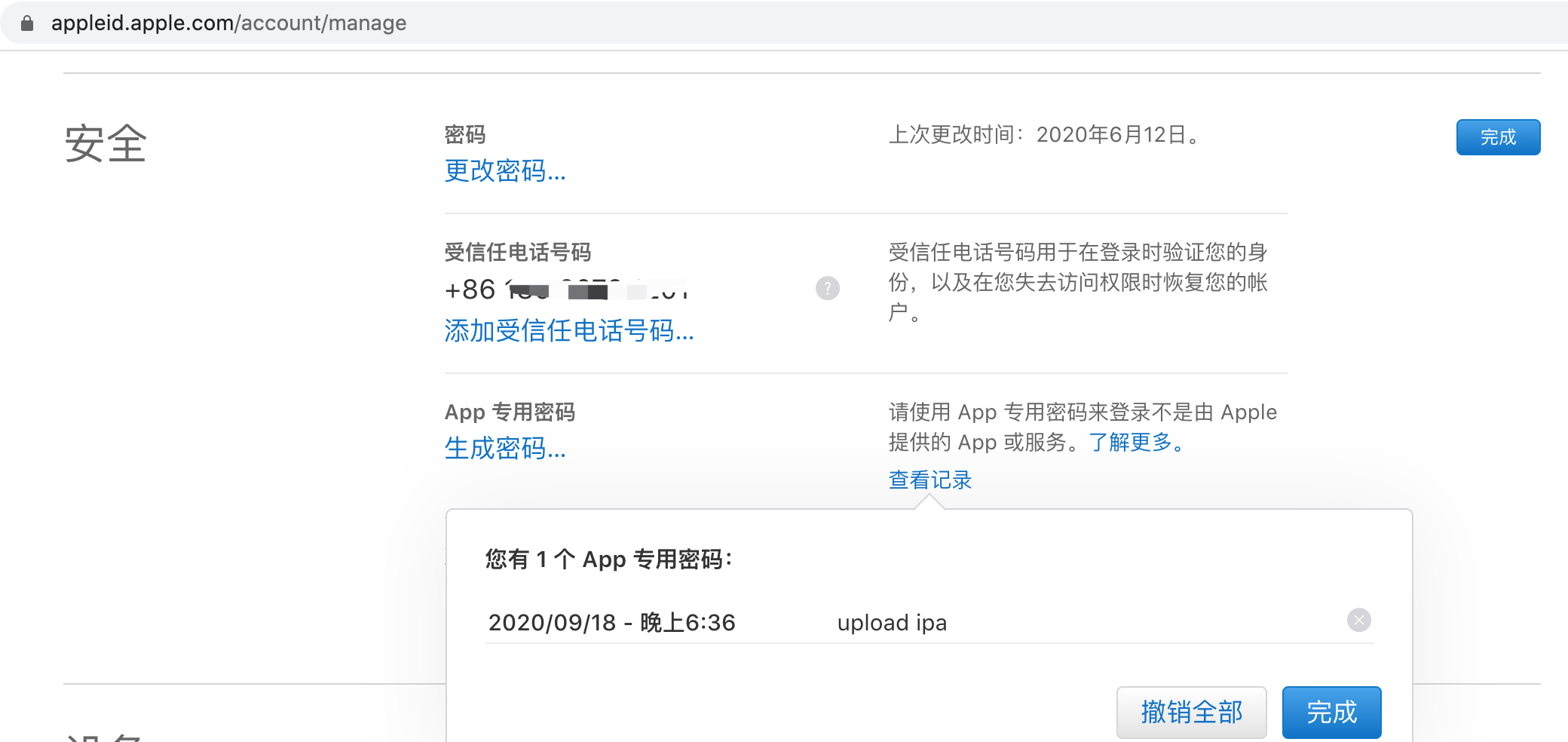
提示信息:Please sign in with an app-specific password. You can create one at appleid.apple.com 。这是因为自己账号开启了二重验证,所以这里的密码不能使用原始的明文密码,而应该使用专用密码。

1.2、创建生成专用密码

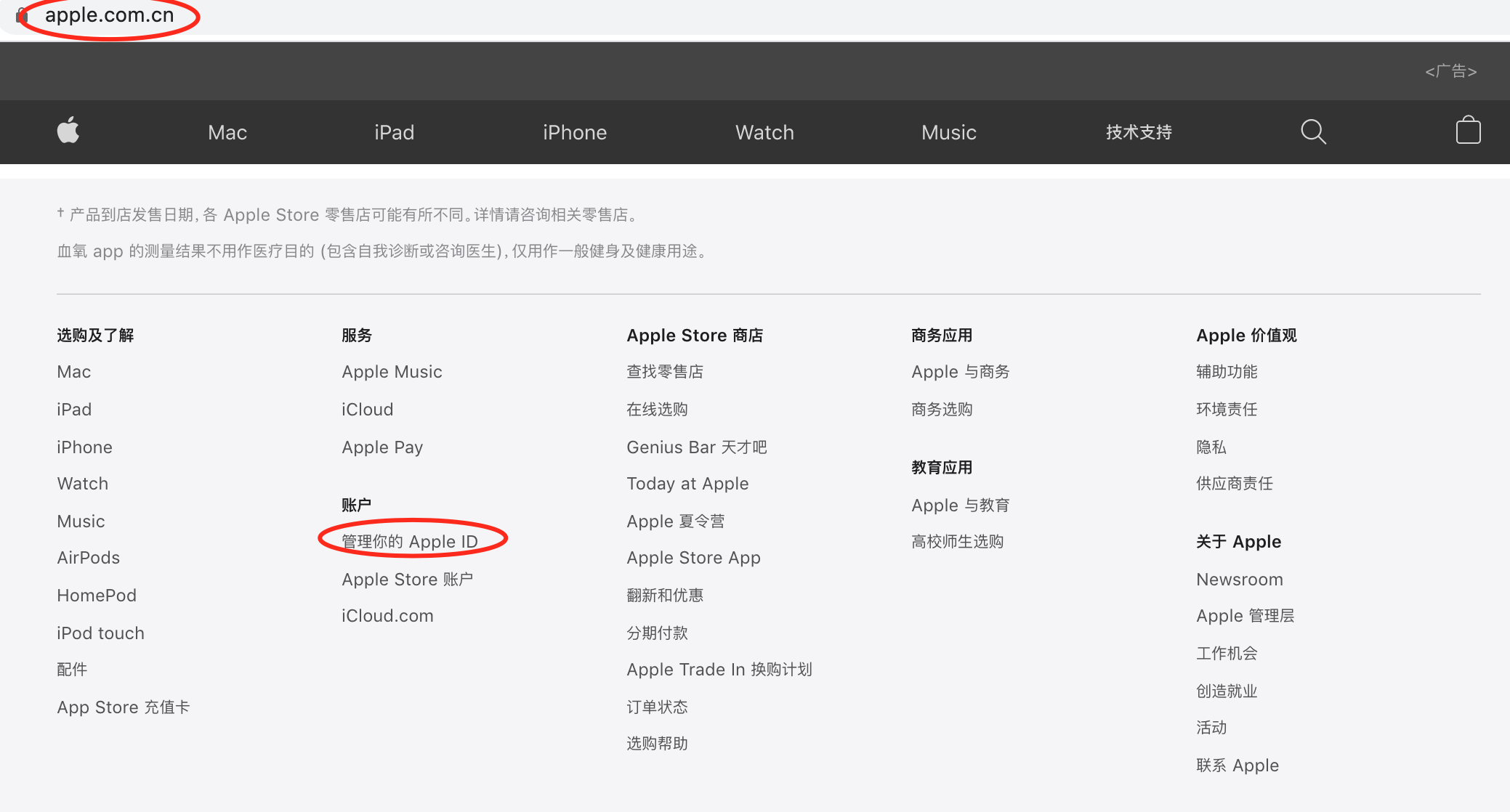
解决办法:在Apple官网https://www.apple.com.cn/登陆你的账号,并进入”管理你的Apple ID“。

image-20200918185022063

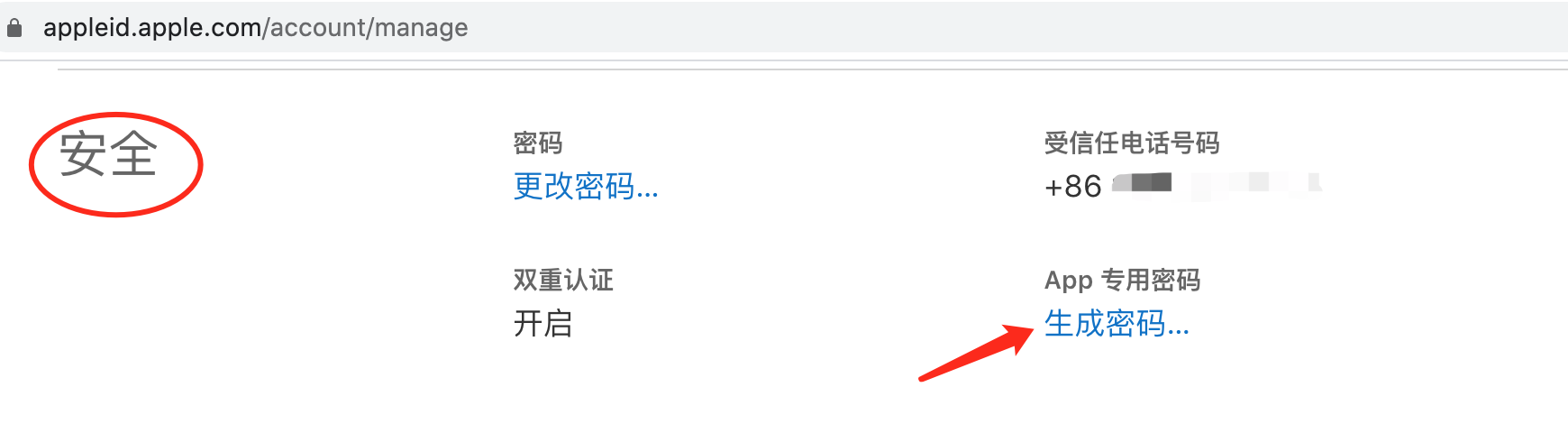
在管理密码的地方有一个App专用密码,点击Generate an App-Specific Password,生成专用密码。

image-20200918185328249

1.3、管理生成的专用密码

点击”查看记录“,可查看管理过往专用密码。

image-20200918185521612

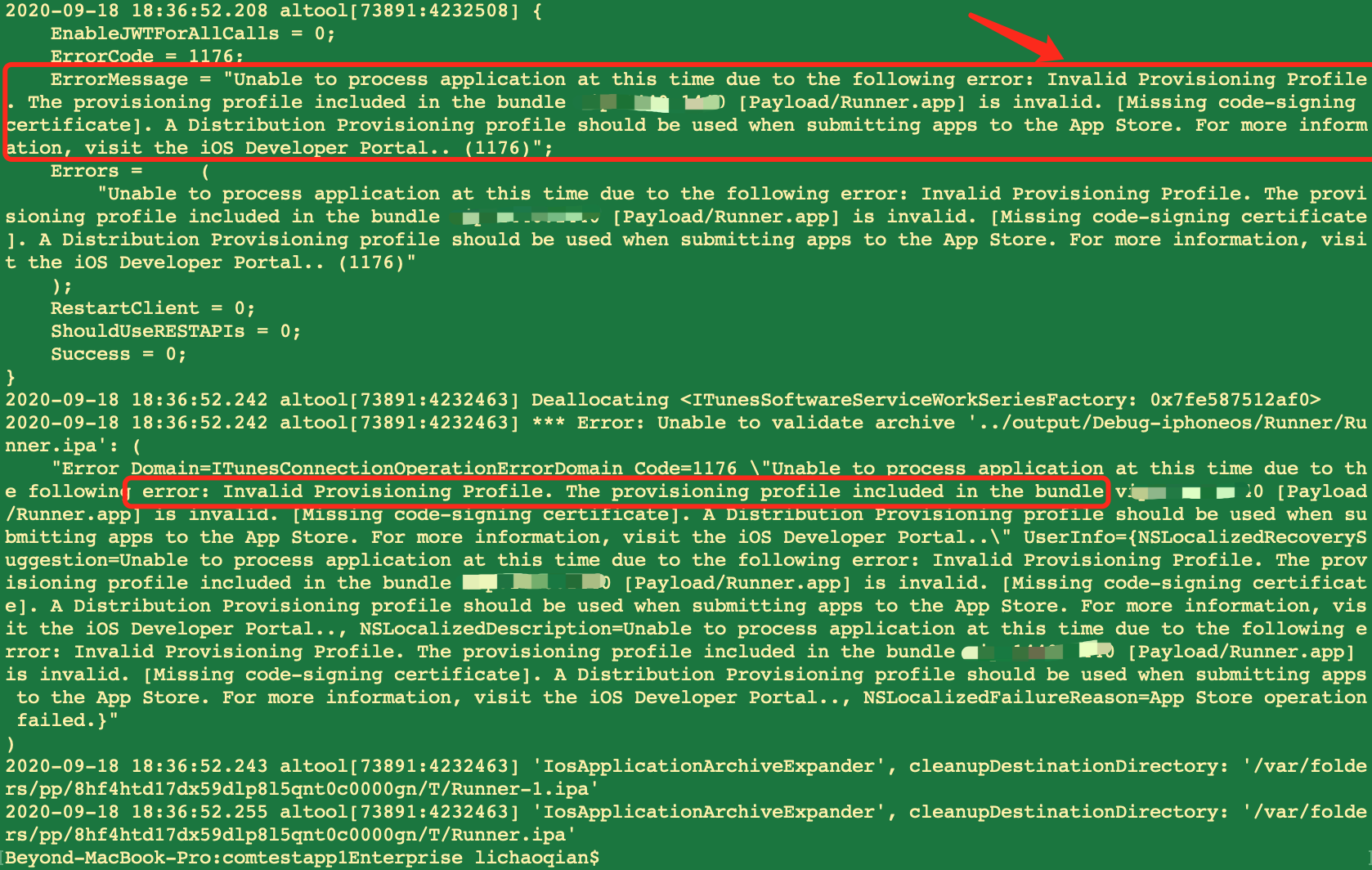
2、问题2Invalid Provisioning Profile. The provisioning profile included in the bundle com.dvlproad.autopackage [Payload/Runner.app] is invalid.

使用专用密码,进行

1
xcrun altool --validate-app -f ../output/Debug-iphoneos/Runner/Runner.ipa -t ios --verbose -u 12345678@qq.com -p lnaa-xxxx-yyyy-zzzz

出现了新错误,新错误截图如下: image-20200918190727435

原因:

1、你打出来的包不是生产环境,比如你打的是dev环境

2、

四、xcrun altool验证上传(方式2:apiKey+apiIssuer方式)

xcrun altool有双重认证限制后,不能直接使用账号密码了,只能使用新的-apiKey 、–apiIssuer。

所以,最终的验证、上传的两个命令形如:

1
2
3
xcrun altool --validate-app -f xxx/xxx/xxx.ipa -t ios --apiKey xxxxxxxx --apiIssuer xxxxxx --verbose  --output-format xml

xcrun altool --upload-app -f xxx/xxx/xxx.ipa -t ios --apiKey xxxxxxxx --apiIssuer xxxxxx --verbose --output-format xml

2个命令分别对应 验证IPA 和 上传IPA,都需要使用3个参数ipa路径apiKeyapiIssuer

①、ipa路径:用xcodebuild打包或用OrganizerExport导出的App store包。

②、apiKeyapiIssuer需要去开发者官网-用户和访问-密钥-去新增。

1、准备xcrun altool上传参数中的apiKey和apiIssuer

1.1、创建生成apiKey和apiIssuer

apiKeyapiIssuer需要去开发者官网-用户和访问-密钥-去新增。如下图流程

新增一个密钥,名称和访问者可以自由填写

img

生成完成后,IssuerID就是apiIssuer,密钥ID就是apiKey,并且还有一个API密钥可以下载。注意此秘钥文件只能下载一次,请妥善保存

img

1.2、下载保存apiKey和apiIssuer

创建生成apiKey和apiIssuer后,按照我们之前在终端执行的xcrun altool命令提示有如下说明:

1
2
3
4
5
--apiKey <api_key>        apiKey. Required for JWT authentication while using validation, upload, and notarization.
This option will search the following directories in sequence for a private key file
with the name of 'AuthKey_<api_key>.p8': './private_keys', '~/private_keys', '~/.private_keys',
and '~/.appstoreconnect/private_keys'.
--apiIssuer <issuer_id> Issuer ID. Required if --apiKey is specified.
即:我们需要把刚才下载好的密钥文件放到这里面的其中一个文件夹里,它会按顺序去查找。

这里我们就选择~/private_keys这个位置吧,即在自己用户目录下/Users/xxx/private_keys新建了个private_keys文件夹,并把密钥文件放进去的。

2、使用xcrun altool验证上传

在确定完ipa包验证和上传使用的xcrun altool命令和上传参数中的apiKey和apiIssuer后,我们就可以开始使用xcrun altool验证上传了。

2.1、xcrun altool验证

验证结果

1
2
3
4
5
6
7
8
9
10
11
12
13
14
15
16
2019-11-13 11:36:56.773 altool[3970:100440] Deallocating <ITunesSoftwareServiceWorkSeriesFactory: 0x7fa5d6d06610>
<?xml version="1.0" encoding="UTF-8"?>
<!DOCTYPE plist PUBLIC "-//Apple//DTD PLIST 1.0//EN" "http://www.apple.com/DTDs/PropertyList-1.0.dtd">
<plist version="1.0">
<dict>
<key>os-version</key>
<string>10.14.6</string>
<key>success-message</key>
<string>No errors validating archive at '/Users/xxx/Desktop/altools.ipa'</string>
<key>tool-path</key>
<string>/Applications/Xcode.app/Contents/SharedFrameworks/ContentDeliveryServices.framework/Versions/A/Frameworks/AppStoreService.framework</string>
<key>tool-version</key>
<string>4.00.1181</string>
</dict>
</plist>
2019-11-13 11:36:

等到提示No errors validating archive at xxx时就代表验证成功了,可以上传了。

4.2、xcrun altool上传

上传结果

1
2
3
4
5
6
7
8
9
10
11
12
13
14
15
2019-11-13 11:49:55.382 altool[4093:102055] [2019-11-13 11:49:55 CST] <main> DBG-X: Returning 0
<?xml version="1.0" encoding="UTF-8"?>
<!DOCTYPE plist PUBLIC "-//Apple//DTD PLIST 1.0//EN" "http://www.apple.com/DTDs/PropertyList-1.0.dtd">
<plist version="1.0">
<dict>
<key>os-version</key>
<string>10.14.6</string>
<key>success-message</key>
<string>No errors uploading '/Users/xxx/Desktop/altools.ipa'</string>
<key>tool-path</key>
<string>/Applications/Xcode.app/Contents/SharedFrameworks/ContentDeliveryServices.framework/Versions/A/Frameworks/AppStoreService.framework</string>
<key>tool-version</key>
<string>4.00.1181</string>
</dict>
</plist>

等到提示No errors uploading时就代表上传成功了。

五、上传结果的查看

可以去开发者中心-活动里面查看一下是否有构建版本
img