问题背景
日常开发中,AI 编码工具(如 Claude Code、Cursor)只能在电脑终端使用,离开电脑就无法交互。当你在手机上想让人 AI 执行任务(如查日志、改代码、跑脚本),或者想通过微信/Telegram 远程操控时,就缺少一个桥梁。
cc-connect 正是解决这个问题的工具——它连接 AI 编码工具和即时通讯软件(微信、Telegram),让你在手机上发消息,电脑上的 AI 接收后执行并返回结果。
实现的效果类似如下:
1
2
3
4
5
6
7
8
9
10
11
12
13
14
15
16
17
18
19
20
21
| cc-connect
2026/05/28 02:28:05 INFO acquired instance lock path=/Users/qian/.cc-connect/.config.toml.lock
2026/05/28 02:28:05 INFO config loaded path=/Users/qian/.cc-connect/config.toml
time=2026-05-28T02:28:05.680+08:00 level=INFO msg="session: loaded from disk" path=/Users/qian/.cc-connect/sessions/my-project_0ff7af6a.json sessions=1
time=2026-05-28T02:28:05.681+08:00 level=INFO msg="session: loaded from disk" path=/Users/qian/.cc-connect/sessions/Users/qian/Project/AI/AIBot/_5bd6edbd.json sessions=1
time=2026-05-28T02:28:05.681+08:00 level=WARN msg="admin_from is not set — privileged commands (/shell, /show, /dir, /restart, /upgrade) are blocked. Set admin_from in config to enable them, or use disabled_commands to hide them." project=/Users/qian/Project/AI/AIBot/
time=2026-05-28T02:28:05.681+08:00 level=INFO msg="platform recovery loop started" project=my-project platform=telegram
time=2026-05-28T02:28:05.681+08:00 level=WARN msg="engine started with partial readiness" project=my-project agent=opencode ready=0 pending=1 failed=0
time=2026-05-28T02:28:05.681+08:00 level=INFO msg="platform ready" project=/Users/qian/Project/AI/AIBot/ platform=weixin
time=2026-05-28T02:28:05.681+08:00 level=INFO msg="engine started" project=/Users/qian/Project/AI/AIBot/ agent=opencode platforms=1
time=2026-05-28T02:28:05.681+08:00 level=INFO msg="cron: scheduler started" jobs=0
time=2026-05-28T02:28:05.682+08:00 level=INFO msg="bridge: server started" addr=:9810 path=/bridge/ws
time=2026-05-28T02:28:05.682+08:00 level=INFO msg="management api started" port=9820
time=2026-05-28T02:28:05.683+08:00 level=INFO msg="api server started" socket=/Users/qian/.cc-connect/run/api.sock
time=2026-05-28T02:28:05.683+08:00 level=INFO msg="cc-connect is running" projects=2
time=2026-05-28T02:28:07.163+08:00 level=INFO msg="telegram: connected" bot=cc_connect_mac_m5_bot
time=2026-05-28T02:28:07.163+08:00 level=INFO msg="platform ready" project=my-project platform=telegram
time=2026-05-28T02:28:07.587+08:00 level=INFO msg="telegram: registered bot commands" count=40
time=2026-05-28T02:30:30.243+08:00 level=INFO msg="message received" platform=telegram msg_id=145 session=telegram:xxxx:yyyy user=roadus content_len=16 has_images=false has_audio=false has_files=false
......
|
Github: cc-connect
一、安装与启动(Mac)
1
2
3
4
5
|
brew install cc-connect
cc-connect
|
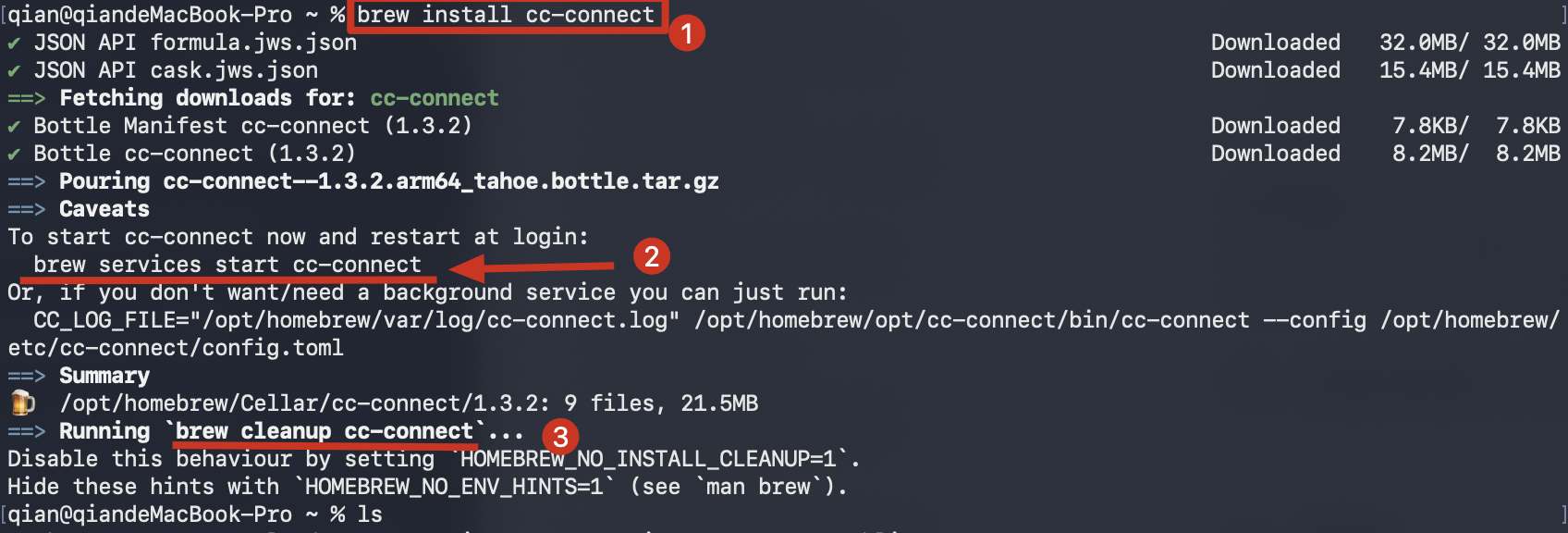
安装过程如图:
二、基本配置
配置文件在 ~/.cc-connect/config.toml 内容大概如下。如果要修改AI工作目录也是在此文件中配置。
1
2
3
4
5
6
7
8
9
10
11
12
13
14
15
16
17
18
19
20
21
22
23
24
| data_dir = ""
attachment_send = ""
language = "zh"
[[projects]]
name = "my-project"
admin_from = "*"
[projects.agent]
type = "opencode"
[projects.agent.options]
mode = "default"
work_dir = "/Users/qian/Project/AI/AIBot"
[[projects.platforms]]
type = "telegram"
[projects.platforms.options]
token = "888xxxxxx:yyyyyyyyyyyyy_zzzz-sE"
allow_from = "6624xxx714"
[log]
level = "info"
|
更详细的配置见 Github: cc-connect
三、接入 Telegram Bot
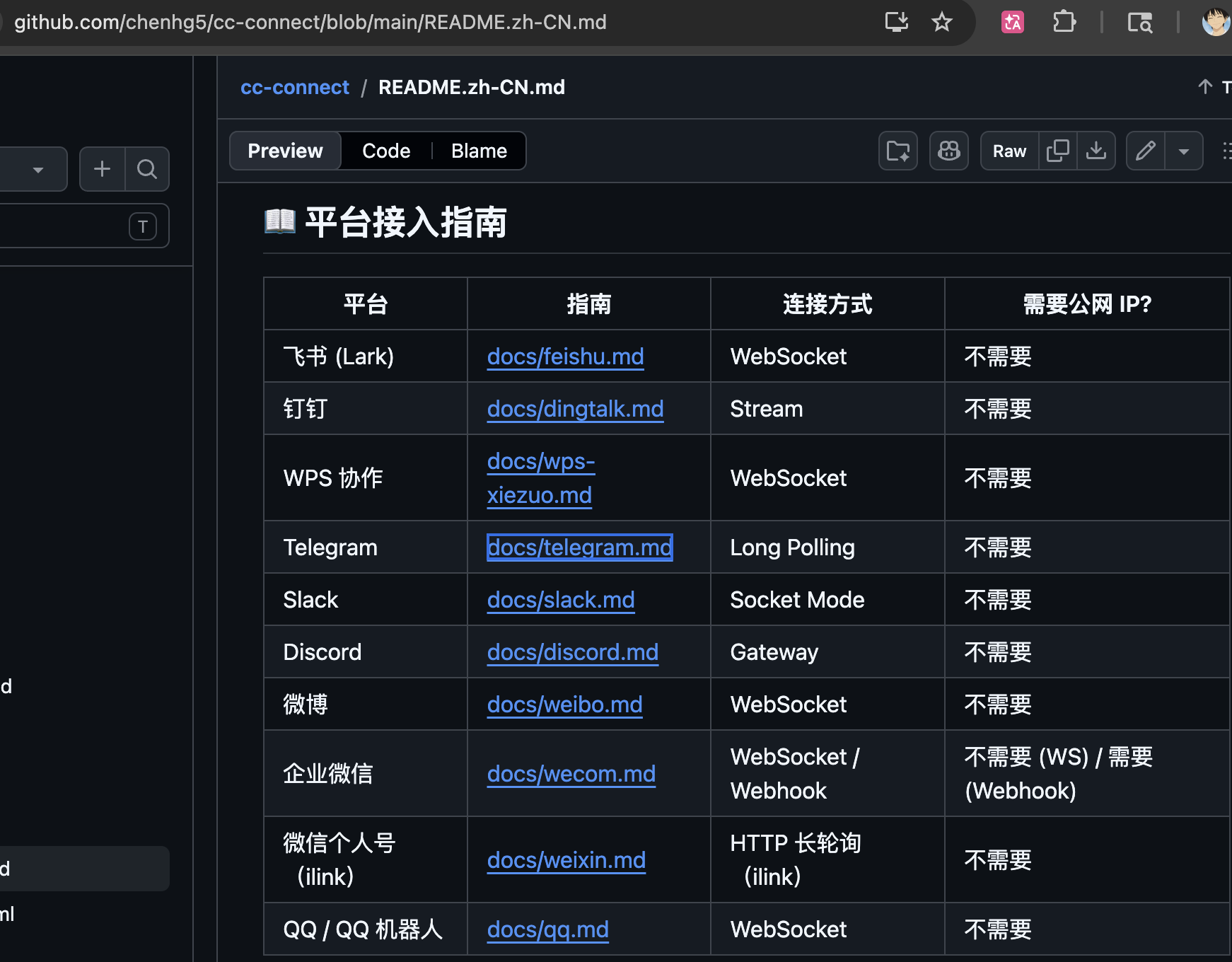
Telegram 详细接入: https://github.com/chenhg5/cc-connect/blob/main/docs/telegram.md
更多详细配置可参考:cc-connect 对各平台自身的接入说明 https://github.com/chenhg5/cc-connect/blob/main/README.zh-CN.md
1、创建 Telegram Bot
Telegram Bot 的创建,详见 Telegram.md
2、将个人聊天 ID 添加到配置表中
1
2
3
4
5
6
7
8
9
10
11
12
13
14
15
16
17
18
19
20
21
22
23
24
| data_dir = ""
attachment_send = ""
language = "zh"
[[projects]]
name = "my-project"
admin_from = "*"
[projects.agent]
type = "opencode"
[projects.agent.options]
mode = "default"
work_dir = "/Users/qian/Project/AI/AIBot"
[[projects.platforms]]
type = "telegram"
[projects.platforms.options]
token = "888xxxxxx:yyyyyyyyyyyyy_zzzz-sE"
allow_from = "6624xxx714"
[log]
level = "info"
|
四、开始 cc-connect 连接
1. 发布/上线
1
2
3
| cc-connect
# Or specify a config file
cc-connect -config /path/to/config.toml
|
2. 验证连接是否正常
你应该会看到如下这样的日志记录:
1
2
3
| level=INFO msg="telegram: connected" bot=cc_connect_bot
level=INFO msg="platform started" project=my-project platform=telegram
level=INFO msg="cc-connect is running" projects=1
|
五、开始聊天
1. 直接消息
- 在 Telegram 中搜索你的机器人的用户名。
- 点击“开始”以开始操作。
- 发送消息
2. 群组聊天
- 创建或打开一个群组
- 进入群组设置 → 添加成员
- 搜索并添加你的机器人吧。
- 在群组里发送消息
六、使用示例
1
2
3
4
5
| User: Help me analyze the current project structure
cc-connect: 🤔 Thinking...
cc-connect: 🔧 Tool: Bash(ls -la)
cc-connect: Here's the project structure...
|